Getting ready for your Conditional Access Audit
Three short steps for your Global Administrator, and exactly what access you’re granting.
Before the audit starts, your team completes three short steps. They take about 15 minutes and need a Global Administrator. This page shows each step and explains exactly what access you are granting.
The short version
- You create one read-only account for the audit.
- Your Global Administrator approves the audit app once.
- Shannon never receives administrator rights, and nothing in your tenant is changed.
- When the engagement ends, you delete the app and the account.
Step 1: Create the audit account
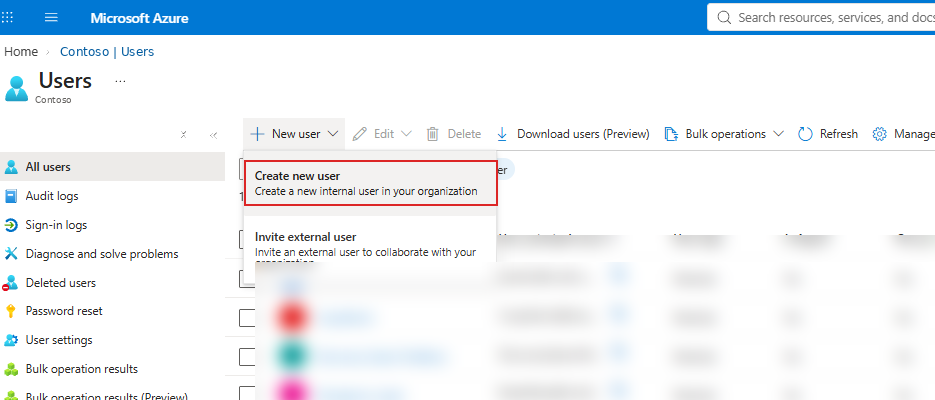
- Sign in to the Microsoft Entra admin center (entra.microsoft.com) or the Azure portal as a Global Administrator, then go to Users → All users → New user → Create new user.
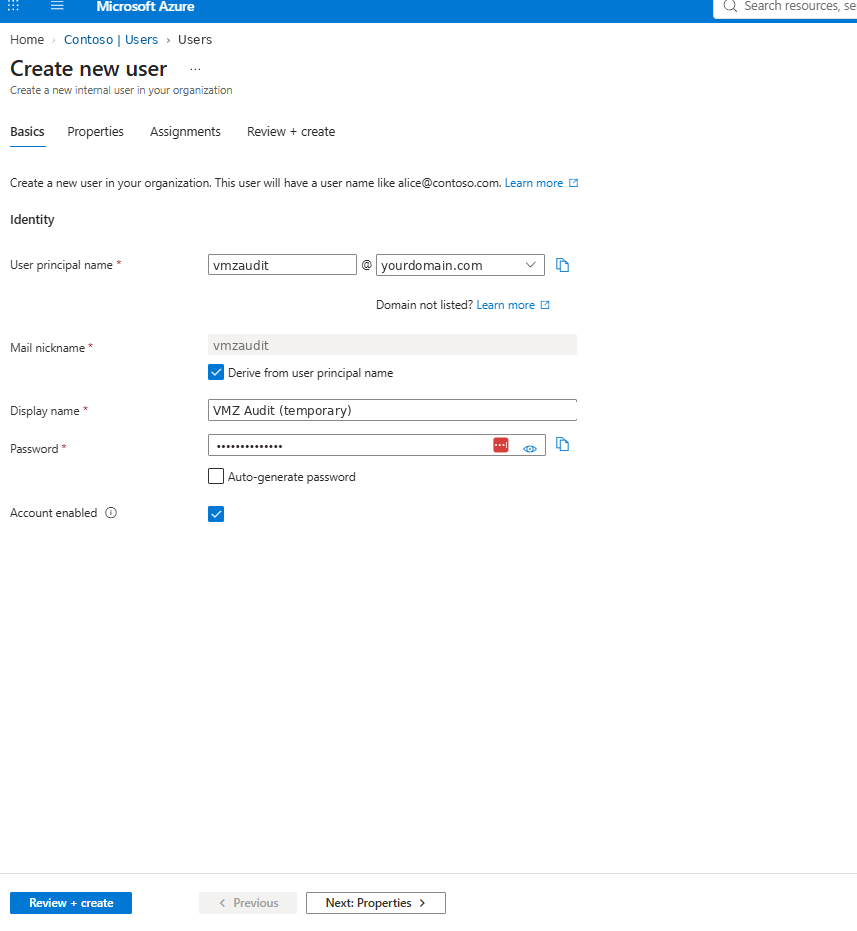
- On the Basics tab, use a name that makes the account easy to find and remove later, such as vmzaudit@yourdomain.com, with the display name VMZ Audit (temporary). Set a password and leave Account enabled checked. The account needs no license.
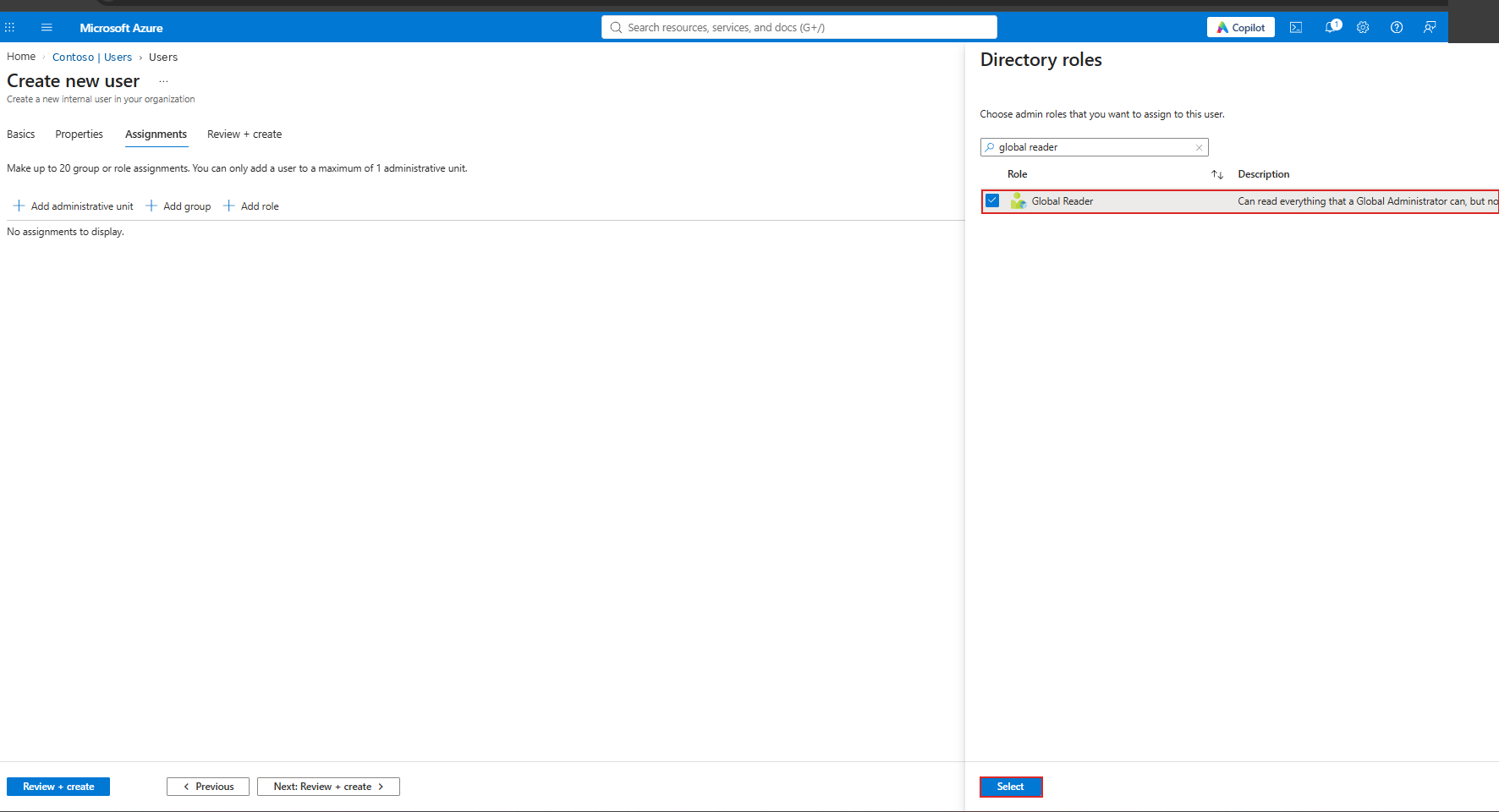
- On the Assignments tab, select Add role, search for Global Reader, check it and choose Select.
- On Review + create, confirm the role shows Global Reader, then select Create.
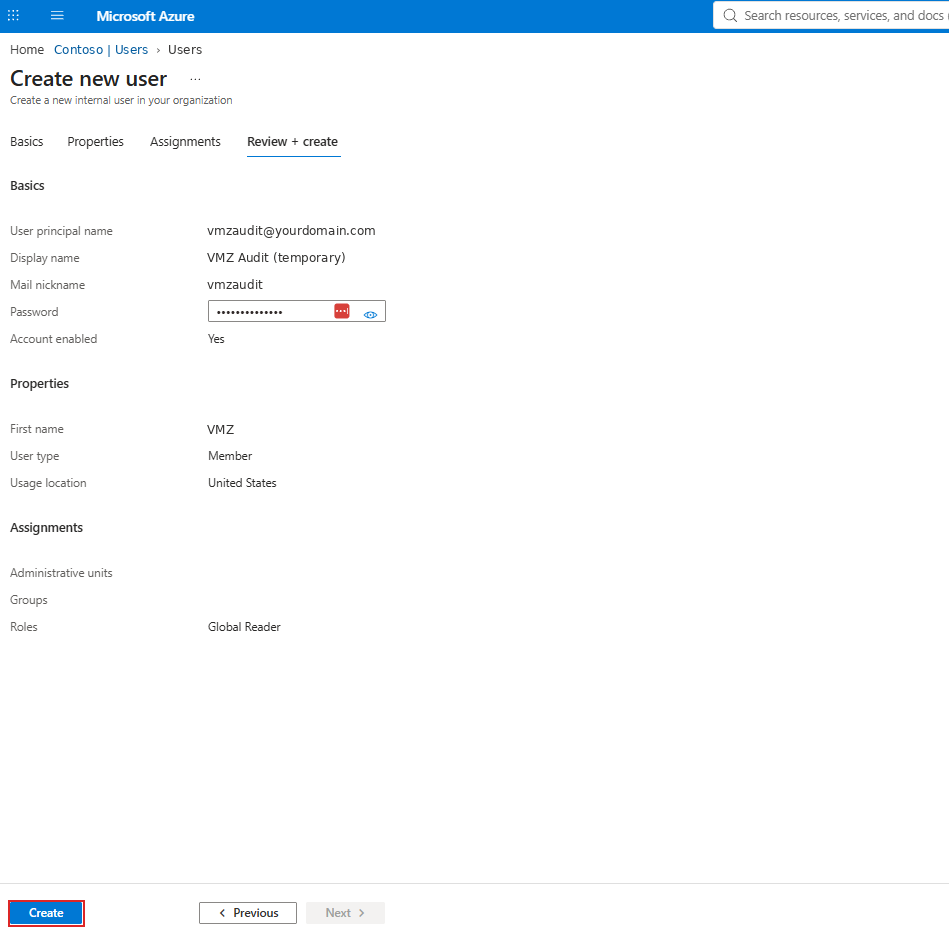
Global Reader can view settings across Microsoft 365 but cannot change anything. If you manage roles through Privileged Identity Management, you can instead make the assignment active and set it to end on the engagement end date. Leave your Conditional Access policies applied to this account as they are. Shannon registers MFA on the first sign-in, exactly like any of your users.
Step 2: Send your tenant ID and the account name
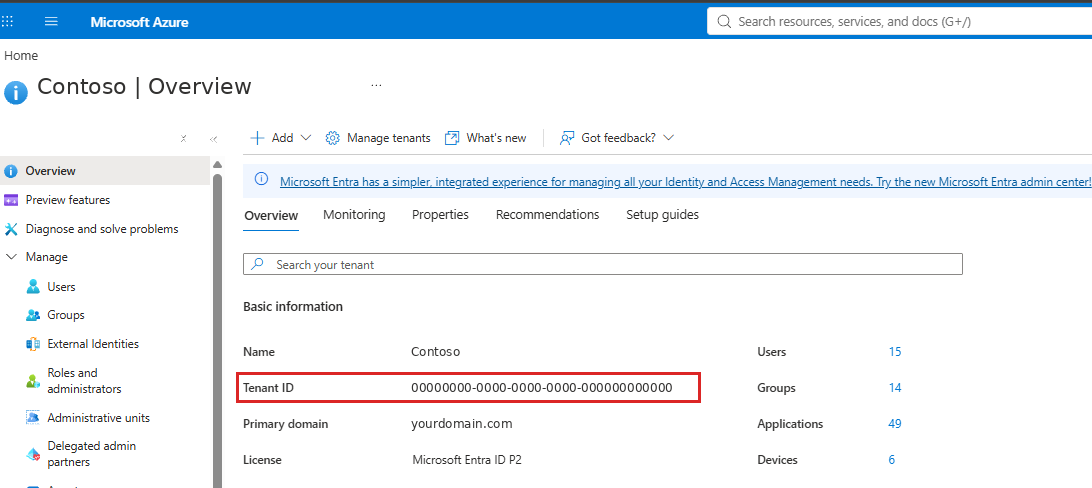
- In the Entra admin center, open Overview and copy the Tenant ID.
- Email Shannon at shenry@vmzllc.com with the tenant ID and the audit account name.
- Share the temporary password separately, by phone or through a secure link. Never send it in the same email.
Shannon replies with an approval link built for your tenant.
Step 3: Approve the audit app
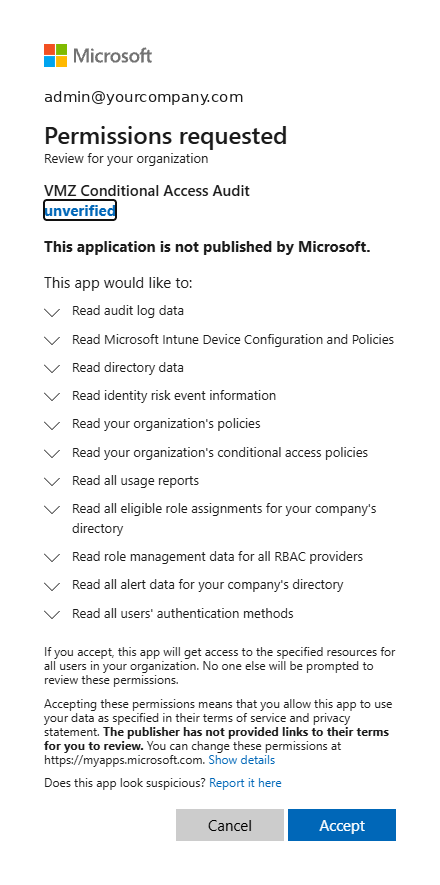
The audit runs through a Microsoft Entra application called VMZ Conditional Access Audit. Your Global Administrator approves it once:
- Open the approval link Shannon sends you.
- Sign in with a Global Administrator account.
- Review the list of permissions and select Accept.
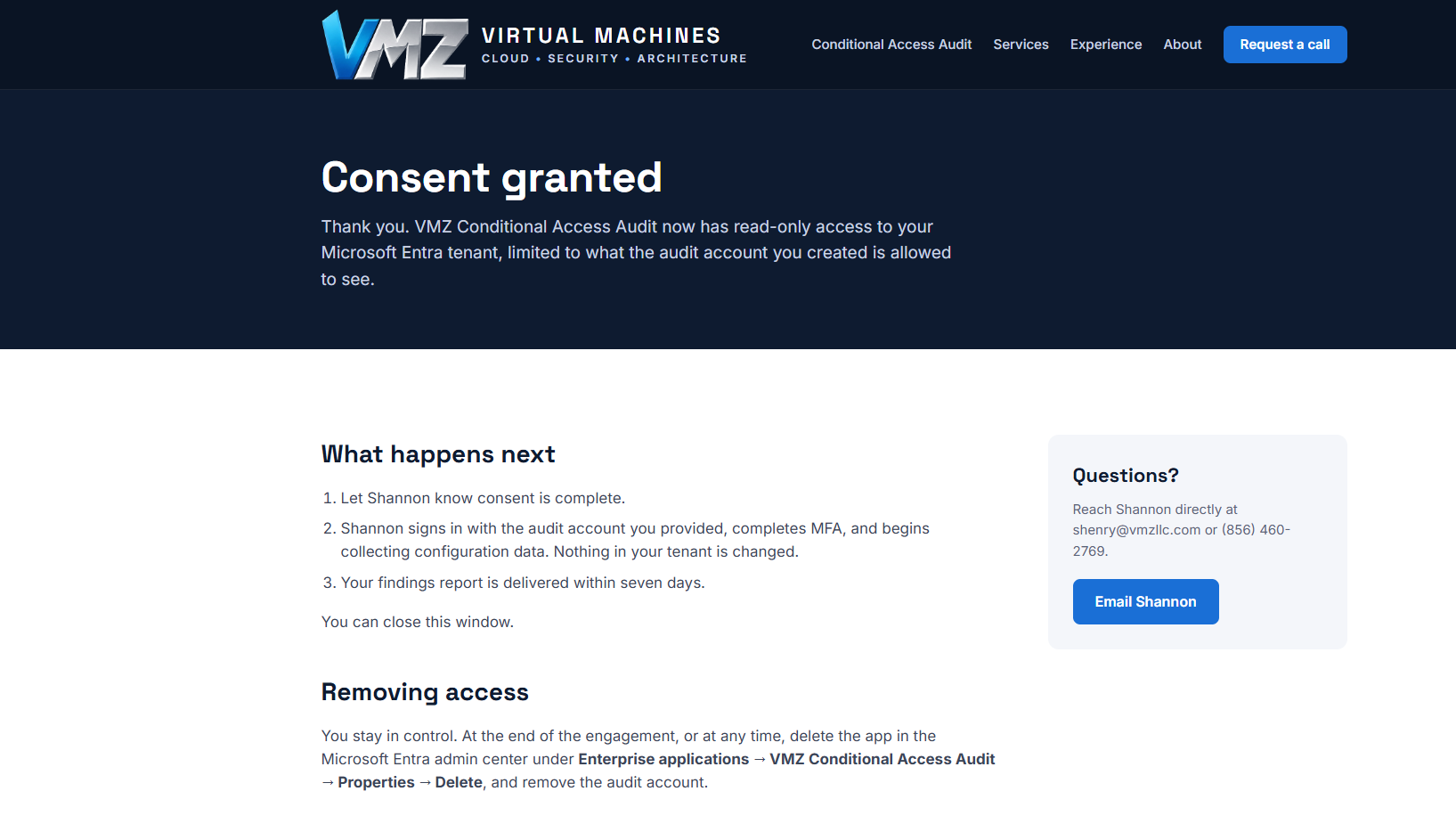
After you accept, you land on a confirmation page on this site. That’s all that’s needed from your side.
What each permission allows
Every permission is read-only. The app acts only as the signed-in audit account, so it can never see more than a Global Reader can, and it works only while Shannon is signed in.
| Permission on the approval screen | What the audit uses it for |
|---|---|
| Read your organization's conditional access policies | The Conditional Access policies being audited |
| Read your organization's policies | Authentication methods, authentication strengths, named locations and security defaults |
| Read directory data | The users, groups and applications named in policy assignments and exclusions |
| Read audit log data | Sign-in logs, to find sign-ins where no policy applied, legacy authentication and single-factor sign-ins |
| Read all usage reports | The MFA registration report |
| Read all users' authentication methods | Which sign-in methods each user has registered |
| Read role management data for all RBAC providers | Who holds administrator roles |
| Read all eligible role assignments | Administrators who can activate a role through Privileged Identity Management |
| Read all alert data for your company's directory | Privileged Identity Management alerts, such as too many Global Administrators |
| Read identity risk event information | Risky sign-ins and users, for risk-based policies (Entra ID P2) |
| Read Microsoft Intune Device Configuration and Policies | Device compliance policies used by “require compliant device” controls |
After the audit: removing access
You stay in control the whole time. When the engagement ends, or at any point you choose:
- In the Entra admin center, go to Enterprise applications → VMZ Conditional Access Audit → Properties → Delete.
- Delete the audit account.
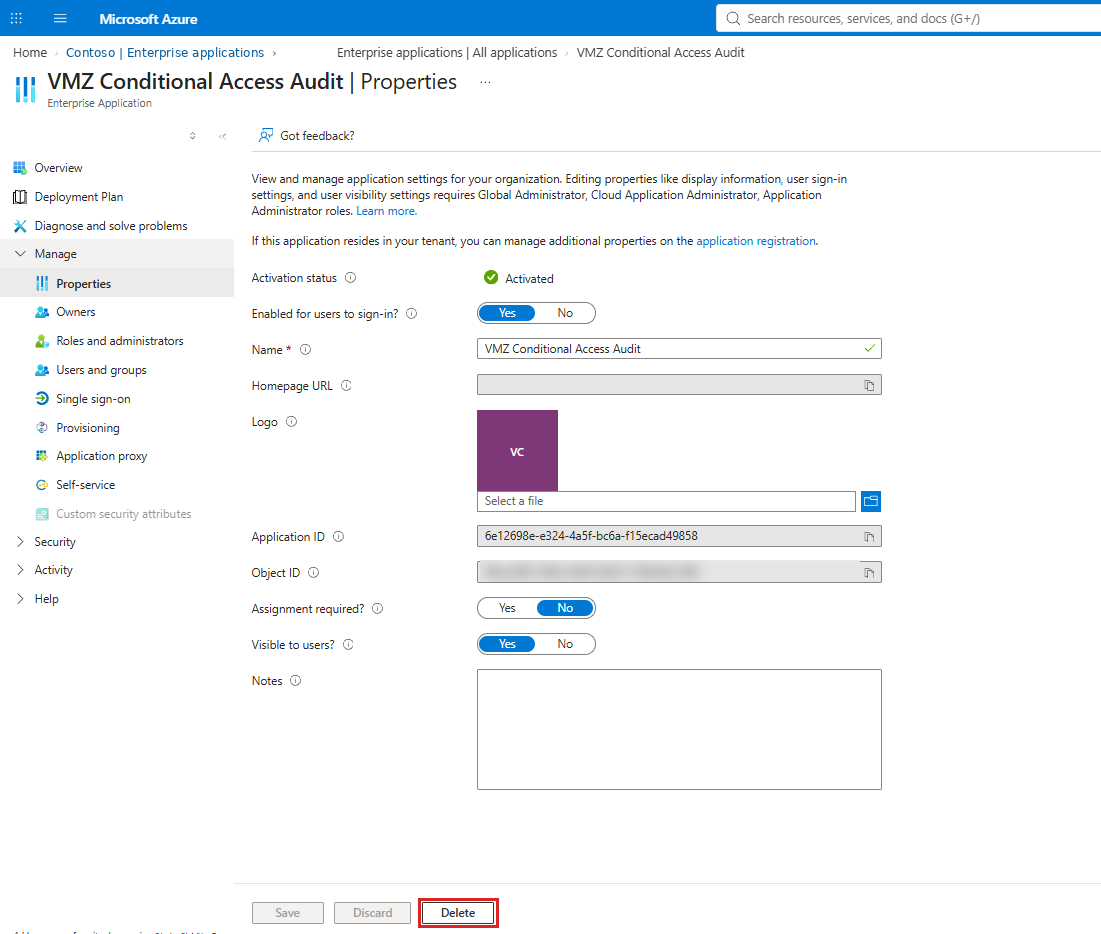
Both steps take effect immediately.
Common questions
Why a dedicated account instead of a guest account?
A named account in your tenant follows your own Conditional Access and MFA rules, appears in your sign-in logs under a clear name, and is removed in one step at the end.
Why does the app need a Global Administrator to approve it?
Microsoft requires administrator approval for any app that reads directory-wide settings, even read-only ones. The approval covers this one app and nothing else.
Can we watch while it’s set up?
Yes. Steps 1 to 3 can be completed live on the kickoff call, with Shannon walking through each screen.
Where I help teams get unstuck
When cloud, identity or security decisions carry long-term consequences
Second-opinion guidance
Objective input on decisions that are difficult or costly to reverse.
Learn more →Security posture improvements
Practical hardening across Conditional Access, MFA, PIM and Defender.
Learn more →Identity & access strategy
Clear guidance when security, usability and business pressure collide.
Learn more →Architecture reviews
Validate Azure and Entra ID designs before changes introduce risk or lock-in.
Learn more →